Imagine every time someone drops a comment on your Instagram post, they get an instant, friendly DM from you, without you even touching your phone. That’s Comment-to-DM Automation.
It’s like having a superpower where every comment turns into a private conversation, automatically. No more missed opportunities. No more forgetting to reply. Just smooth, real-time engagement that feels personal, not robotic.
Whether it’s a giveaway, a product inquiry, or a casual question, AP3K slides into your follower’s DMs for you, starting conversations while you’re busy running your brand (or, let’s be real, binge-watching your favorite series).
Once your Instagram account is connected to AP3K, you’re ready to create your first automation. Here’s exactly how to do it in just a few clicks:
Step 1: Go to the Dashboard
After logging in, you’ll land on the AP3K dashboard. This is your main control panel.
Step 2: Open Automations
Open Automations in the sidebar to see your saved automations. Above the list, All / Basic / Flow filter what you are looking at.
Step 3: Create a Post Automation
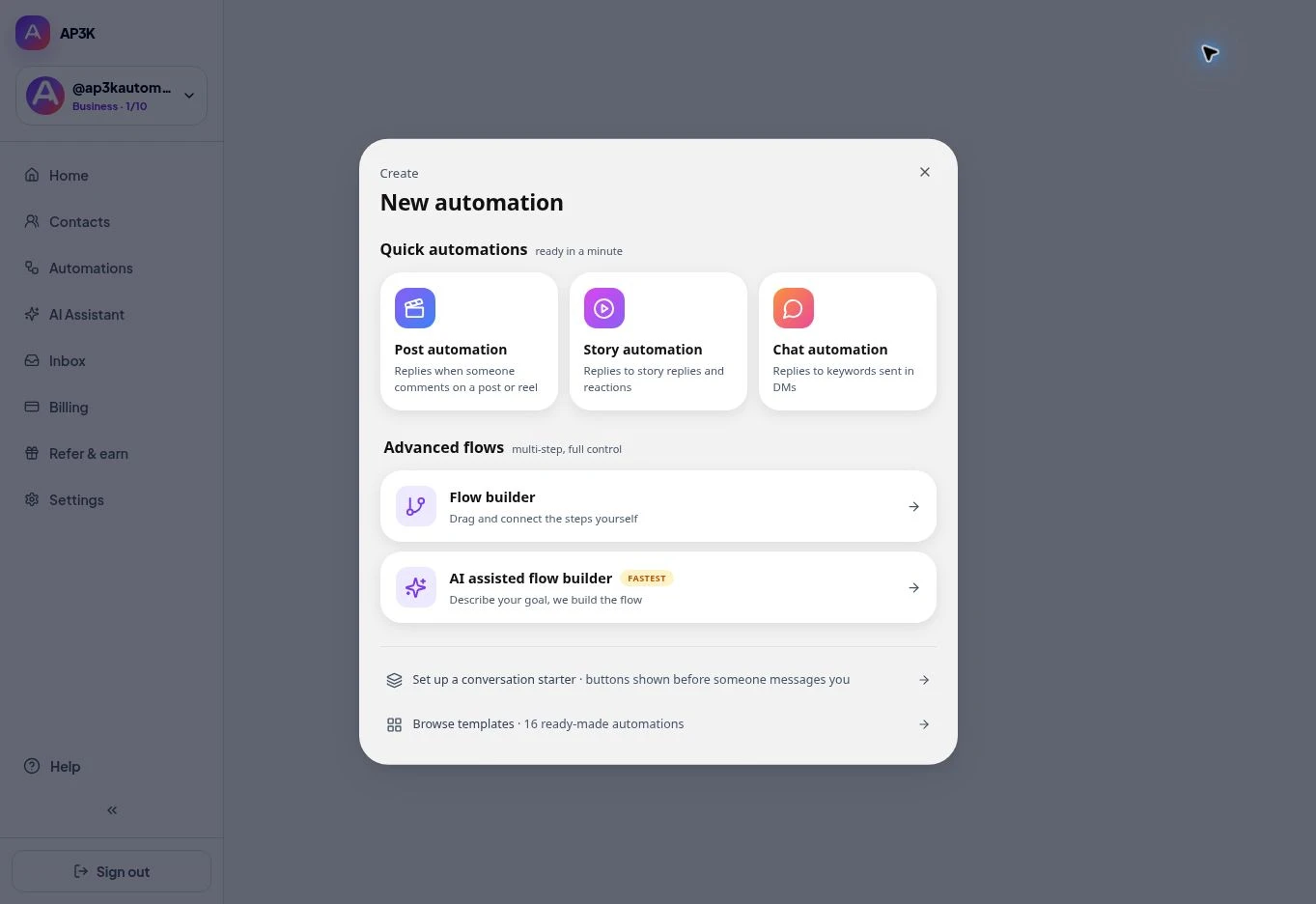
Click + New automation. The dialog offers three quick automations:
- Post automation: replies when someone comments on a post or reel
- Story automation: replies to story replies and reactions
- Chat automation: replies to keywords sent in DMs
Below those sit the advanced options — Flow builder and AI assisted flow builder — plus a conversation starter and ready-made templates.
Choose Post automation for a comment-to-DM flow.
Step 4: Configure Your Automation
You’ll now walk through a few quick setup steps:
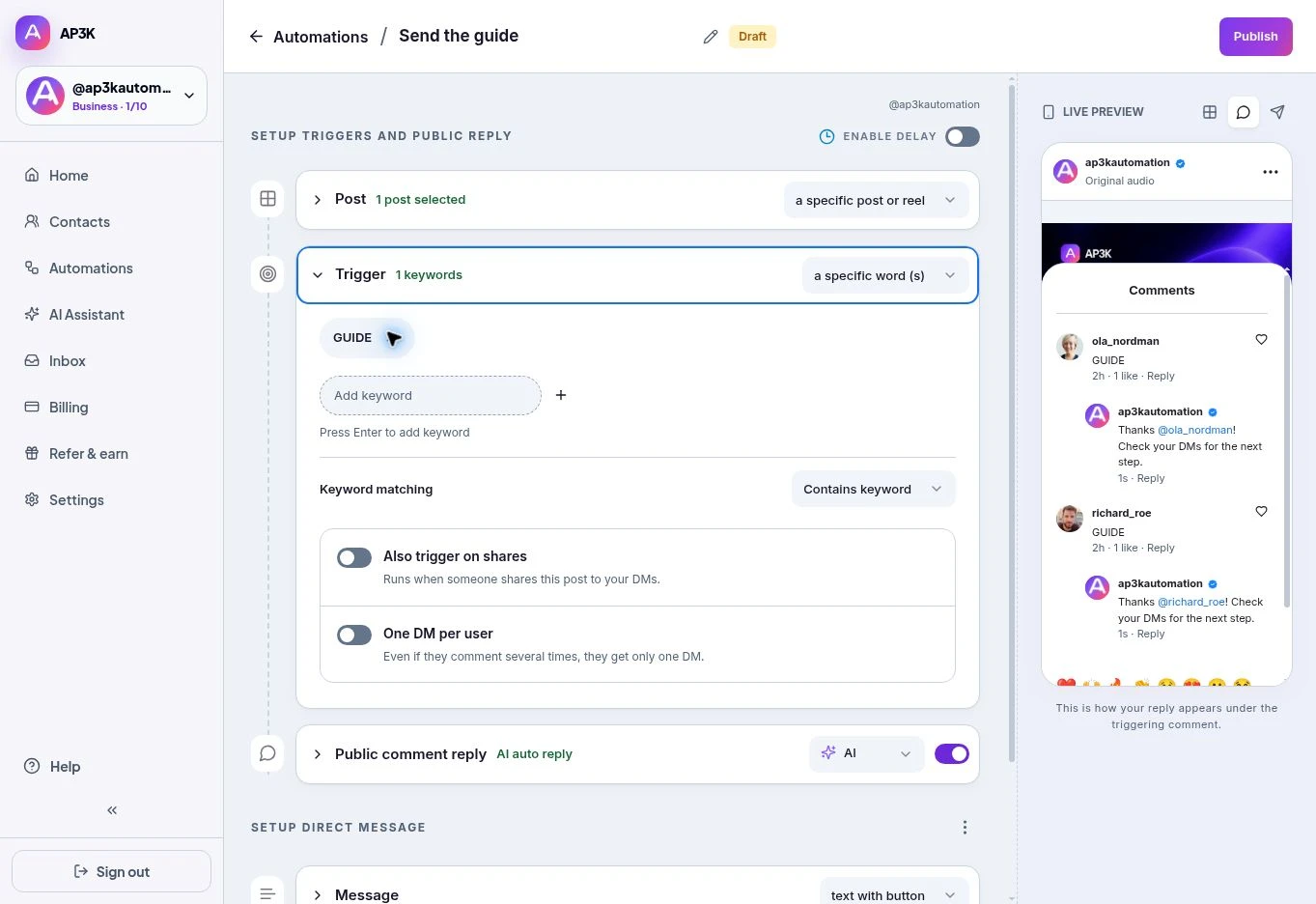
- Select Post or Reel: choose a specific post or reel and click its thumbnail, or choose Any post for an account-wide campaign.
- Set Trigger: choose Any comment or a specific word (s). Add campaign keywords such as LINK, GUIDE or INFO; choose Contains keyword or Exact match.
- Set Public comment reply: write saved replies in Manual, or use an AI prompt. Free accounts can generate a prompt and preview samples within the preview allowance; publishing AI replies requires a paid plan.
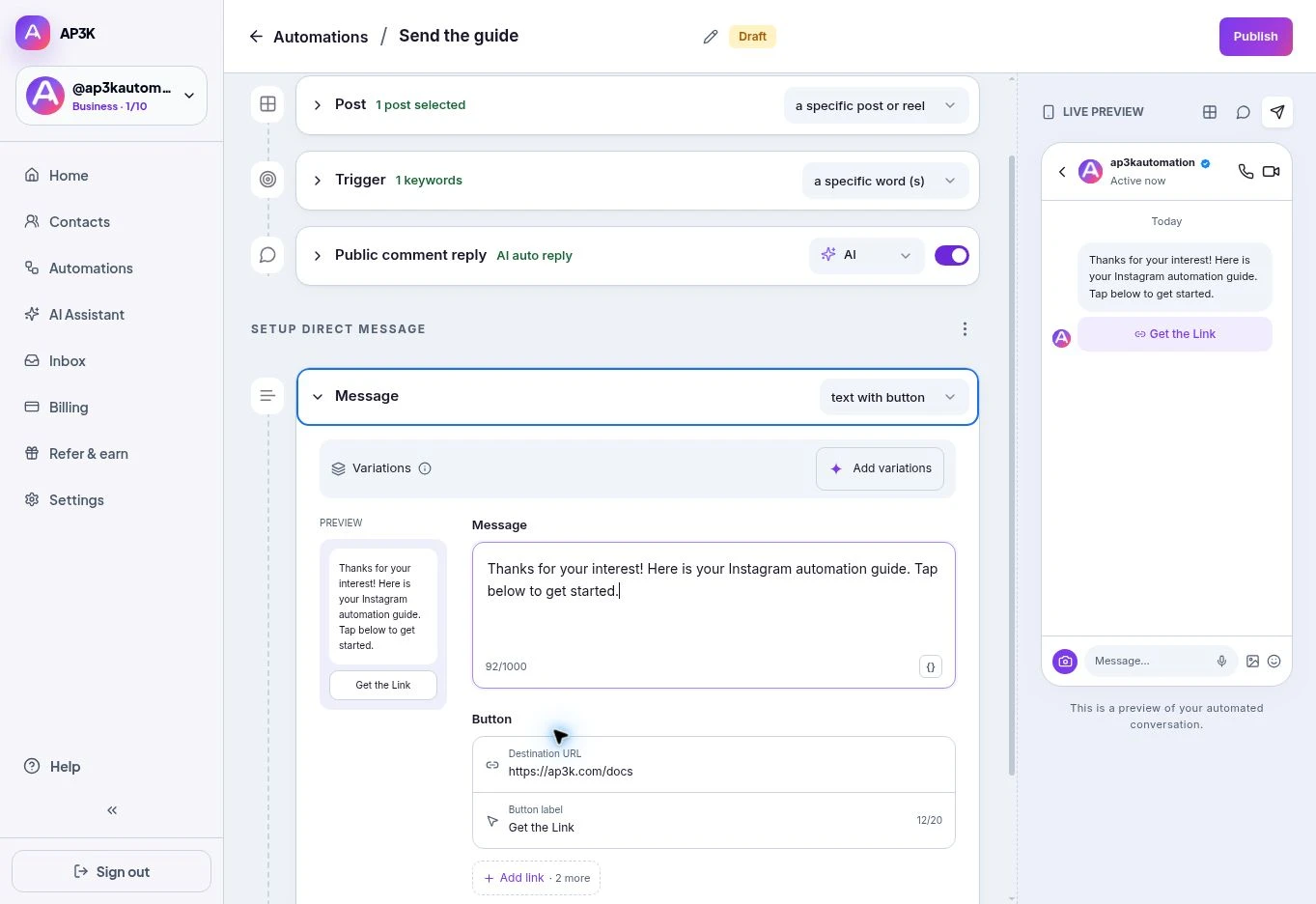
- Choose Message format: plain text, text with button (up to three links), image with button, or attachment.
- Add optional steps: an Opener message can ask the person to tap before the final DM. Paid plans can add Collect info, Ask to follow and Follow up message.
Use the live preview to review the reply, DM and button labels. This automation listens for new matching interactions after publication; it does not backtrack old comments.
Step 5: Publish and Go Live
Click Publish and go live. Your automation is now running in the background, no more manual replies needed!
Real-World Cases and Examples
- Giveaway Madness: “Comment ‘Done’ to enter!” → Auto DM bonus entry steps and watch excitement build.
- Flash Sales: “Comment ‘SALE’ for your code!” → DM them a time-limited discount and drive FOMO.
- Product Teasers: “Want early access? Comment ‘VIP’!” → DM secret launch info to your biggest fans.
- Service Bookings: “Need help? Comment ‘Consult’!” → DM your booking link and get those calls lined up.
- Event Hype: “Coming to our event? Comment ‘RSVP’!” → DM them venue details and save the date.
- Freebies & Guides: “Want the checklist? Comment ‘Guide’!” → DM them the PDF instantly.
- Support Made Easy: “Got an issue? Comment ‘Help’!” → DM a quick troubleshooting guide.
- Newsletter Signups: “Stay updated! Comment ‘Subscribe’!” → DM signup link.
- Lead Magnets: “Grab the resource! Comment ‘Download’!” → DM a freebie and collect leads.
Best Ways to Set Up
- Mix up your replies. Random message variations = natural convo vibes.
- Always drop a clear CTA: “Tap the link!”, “Reply YES!”, “Claim now!”
- Keep it on-brand: Sound like you, not a bot. Emojis? Humor? Go for it.
- Always preview/test with a dummy account first. Nobody likes broken automations.
- If expecting loads of comments (think big promos), let AI Auto-Reply help you out without missing a beat.