Connect your Instagram professional account to AP3K through Instagram Login. You approve access on Instagram; your Instagram password is not entered into AP3K.
Before you begin
- Use a Business or Creator account. Personal accounts cannot use the required messaging API.
- Sign in to your AP3K account. New accounts begin at onboarding.
- If you are moving from another automation tool, review its active automations and messaging connection before switching.
1. Open your AP3K workspace
Create an account or sign in at AP3K. In onboarding, choose to connect Instagram. In an existing workspace, use Add Instagram account.
2. Connect Instagram
Choose Connect Instagram. Sign in to the Instagram account you want to automate and approve the requested account, comment, and messaging access. A Facebook Page is not required for this direct Instagram Login flow.
3. Check the connected account
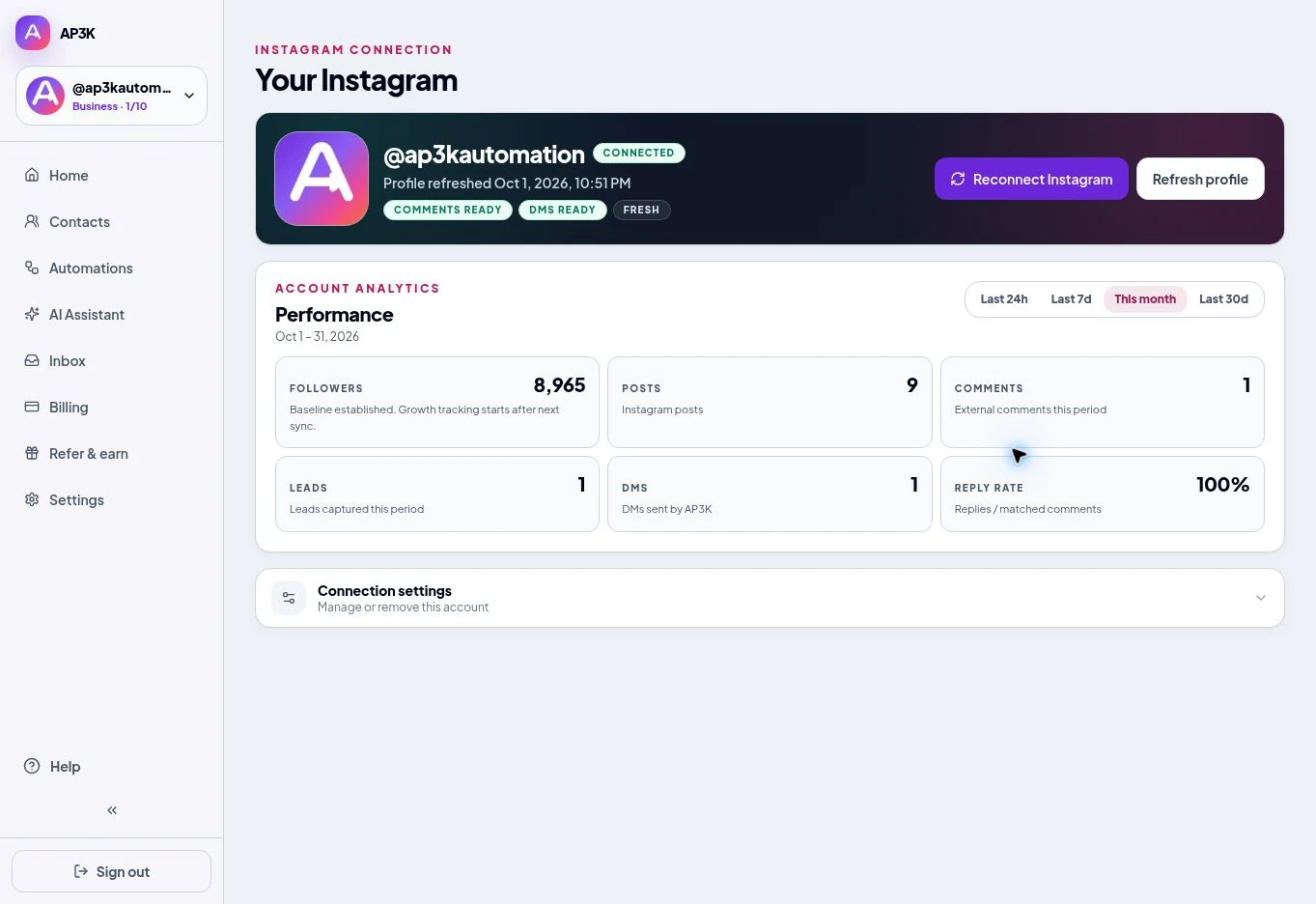
After a successful connection, AP3K returns you to the dashboard. Confirm the displayed @username is the account you intended to connect. Open its Instagram connection details to review comment and DM readiness.
4. Run a real test
Create and publish a simple automation, then comment from a second Instagram account. Check both the public reply and the DM, including Message requests. Create an Instagram comment-to-DM automation.
If the connection does not finish
Read the error shown in AP3K before trying again. A different connected workspace, missing permissions, or an ineligible account requires a different fix. Check your Instagram permissions.