Connect each Instagram account you manage to AP3K separately, then select the right account before building or reviewing an automation.
Before you begin
- Have access to the Instagram professional account you want to add.
- Check your account allowance: Free supports one connected Instagram account, Pro supports three, and Business supports ten.
Add the account
- Sign in to your existing AP3K workspace.
- Choose Add Instagram account from the account controls.
- Sign in to the Instagram account you are adding and approve the requested access.
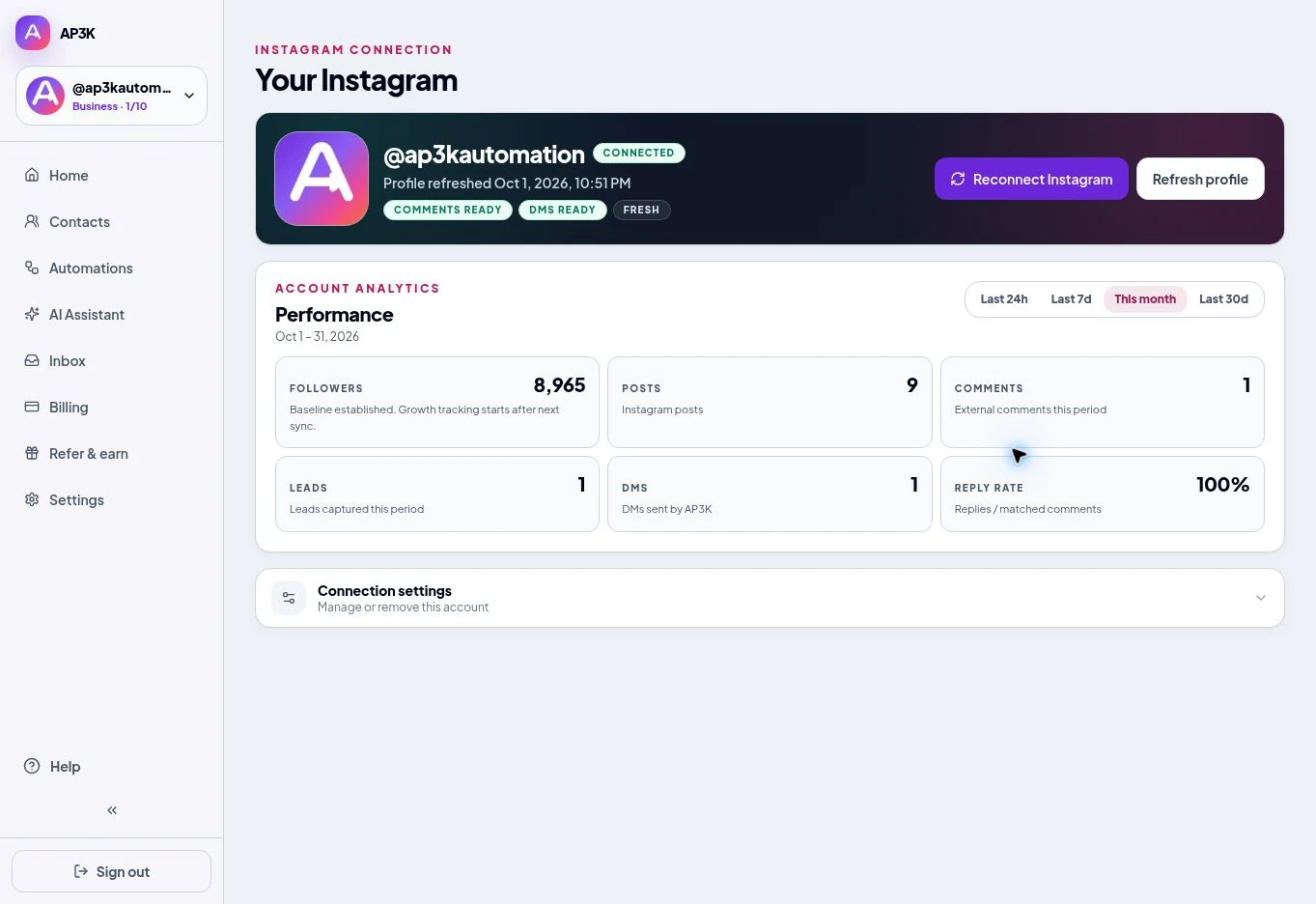
- After returning to the dashboard, confirm the @username and connection status.
Switch between accounts
Use the account switcher to select a connected Instagram account. Check the selected username before editing automations, contacts, or analytics. Monthly action and AI allowances remain shared across the subscription.
Already connected to another workspace
An Instagram account already attached to a different AP3K workspace must be removed there before it can be added here. Use that workspace’s Instagram connection settings, or contact support if you cannot access it.
Check messaging control
A successful account connection does not remove a competing app’s messaging permissions. Resolve another app controlling conversations if replies fail with a thread ownership error.