An instant reply is the one thing no human has ever sent. Someone comments, and half a second later a perfectly formatted DM arrives — the timing alone gives it away.
Delay puts a pause between two steps.
Turning delays on
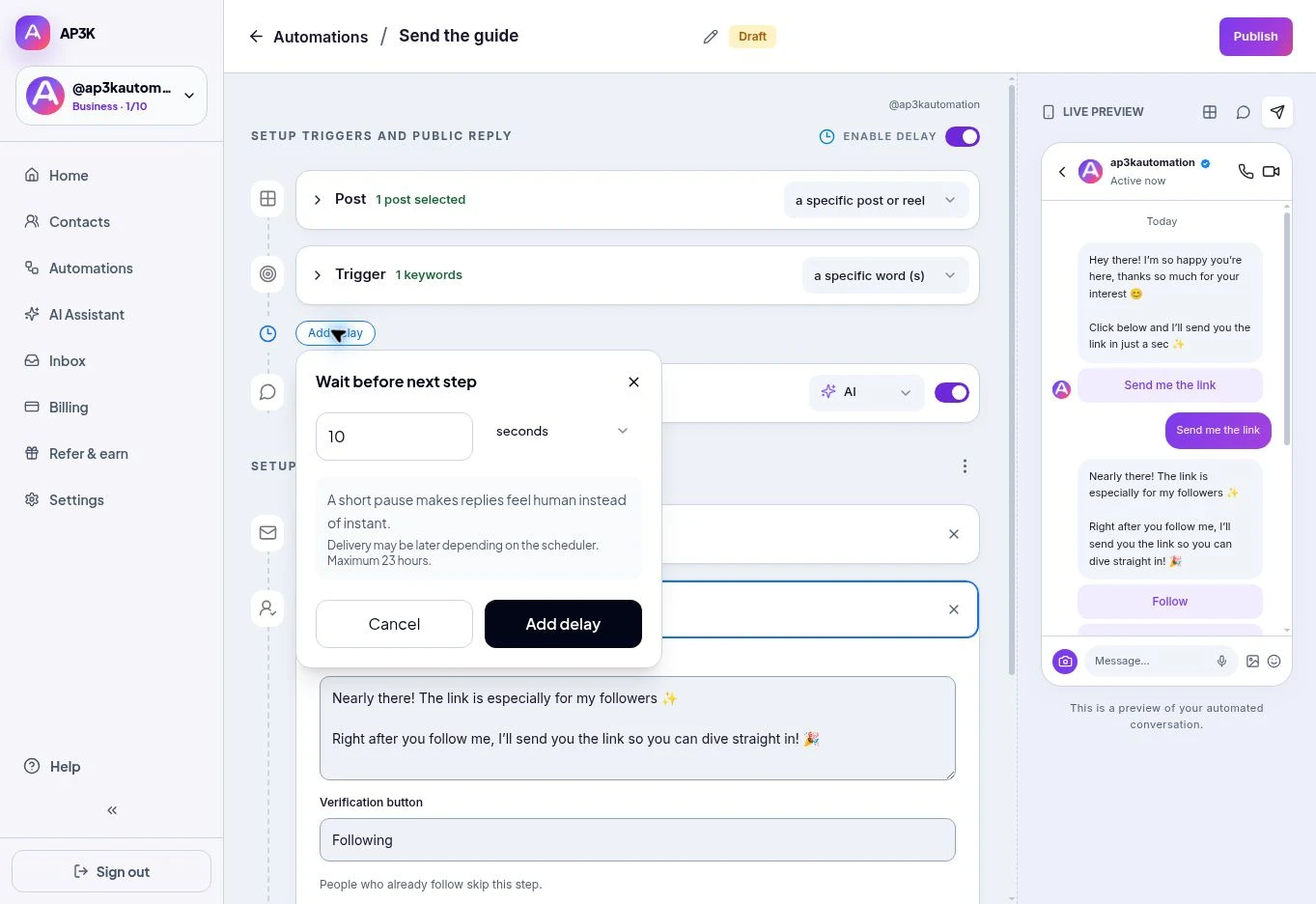
In the Post editor, switch on Enable delay. The Add delay control appears below the trigger. Open it, enter an amount, choose seconds, minutes or hours, then click Add delay to apply it.
Click the saved delay to edit it, or remove it with ×. Switching Enable delay off resets this wait to zero. Save or publish the automation to persist the change.
This is one delivery wait, not a separate delay for every card. For independent waits between multiple steps, use a Delay node in Flow builder. Follow-up messages have their own wait selector.
How long
The Post editor accepts a wait from one second to 23 hours. A short delay of five to fifteen seconds keeps an initial response timely. Use longer waits only when they serve the conversation.
Delivery is scheduled and may occur later than the selected minimum wait. Publishing checks scheduling availability; if the scheduler is not ready, resolve the readiness error before relying on delayed delivery.
Where delays earn their keep
- Before the initial DM — a short pause while the offer is still relevant.
- Between flow steps — separate messages with a Delay node.
- Before a follow-up — choose the follow-up wait and condition together.
Test a short wait from a second account before using a long one in a live campaign.