Instagram is a great platform for growing your audience, but are you capturing leads effectively? With chat automation, you can automatically collect names and emails from interested followers and export them into a CSV file for easy management.
In this guide, we'll show you how to set up lead capture automation using the Capture Leads template and how to export your collected data.
Create a New Chat Automation
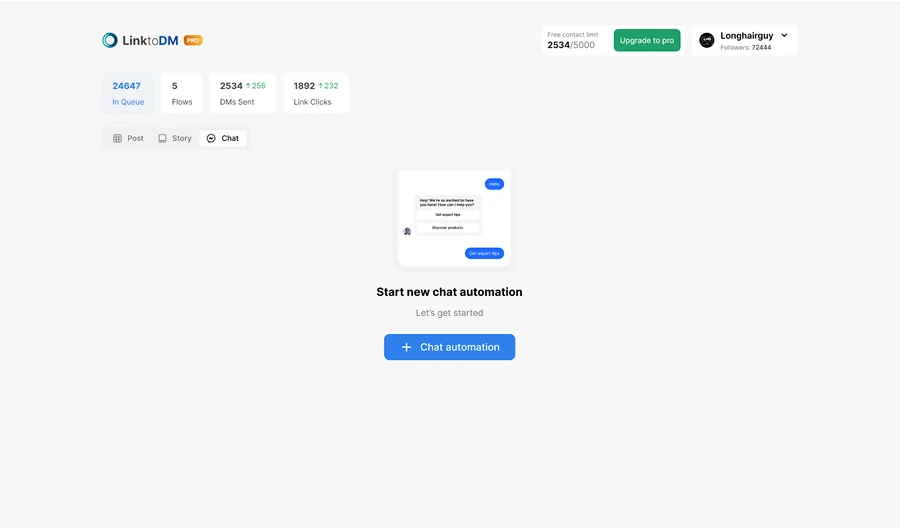
Navigate to the Chat Automation section and click on "Create New Chat Automation." This will allow you to set up a new response system for your Instagram DMs.
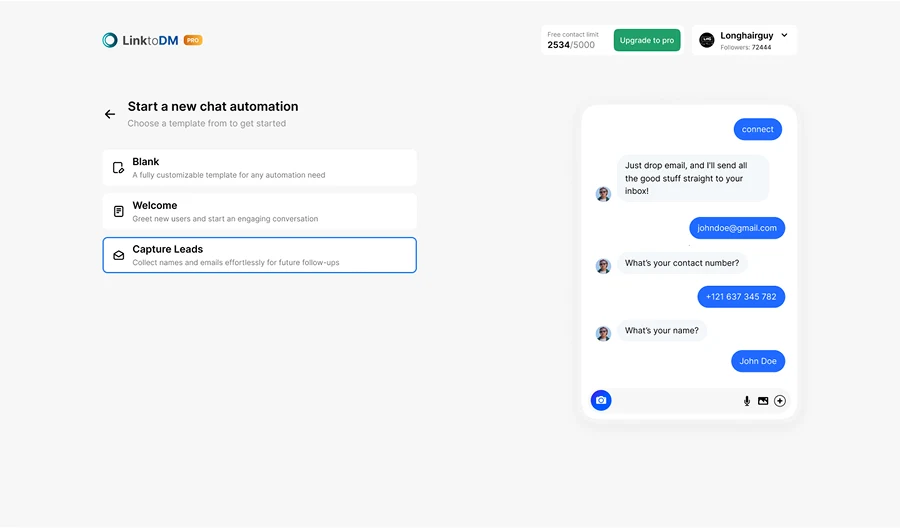
Select the "Capture Leads" Template
Choose the Capture Leads template. This template is designed to collect names and emails from interested users automatically.
Add a Trigger for Product Inquiries
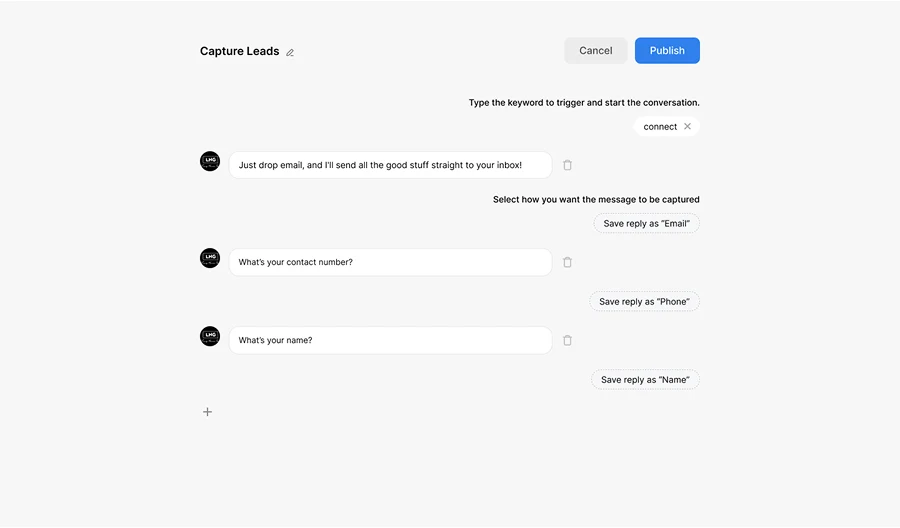
To activate the automation, add relevant triggers—these are keywords that followers can type in their DMs to start the lead capture process. Examples include:
- "Exclusive"
- "Newsletter"
- "Early Access"
- "Free Guide"
When someone DMs you with one of these keywords, the automation will prompt them to share their name and email.
Customize the Message
Once the trigger is activated, your automation should send a message like this:
"Hey! 💌 Want exclusive fashion tips, styling guides, and early access to my favorites? Just drop your name & email, and I'll send all the good stuff straight to your inbox!"
Once they respond, their details will be saved automatically.
Export Leads as a CSV File
After capturing leads, you can easily export them:
- Go to your Dashboard
- Open the Chat section
- Click Export CSV to download the list
This file will contain all the collected names and emails, which you can use for email marketing, follow-ups, and special promotions.
Turn the next comment into a conversation.
Choose a clear trigger, write a useful response and try your first AP3K campaign.
SHARE THIS ARTICLE